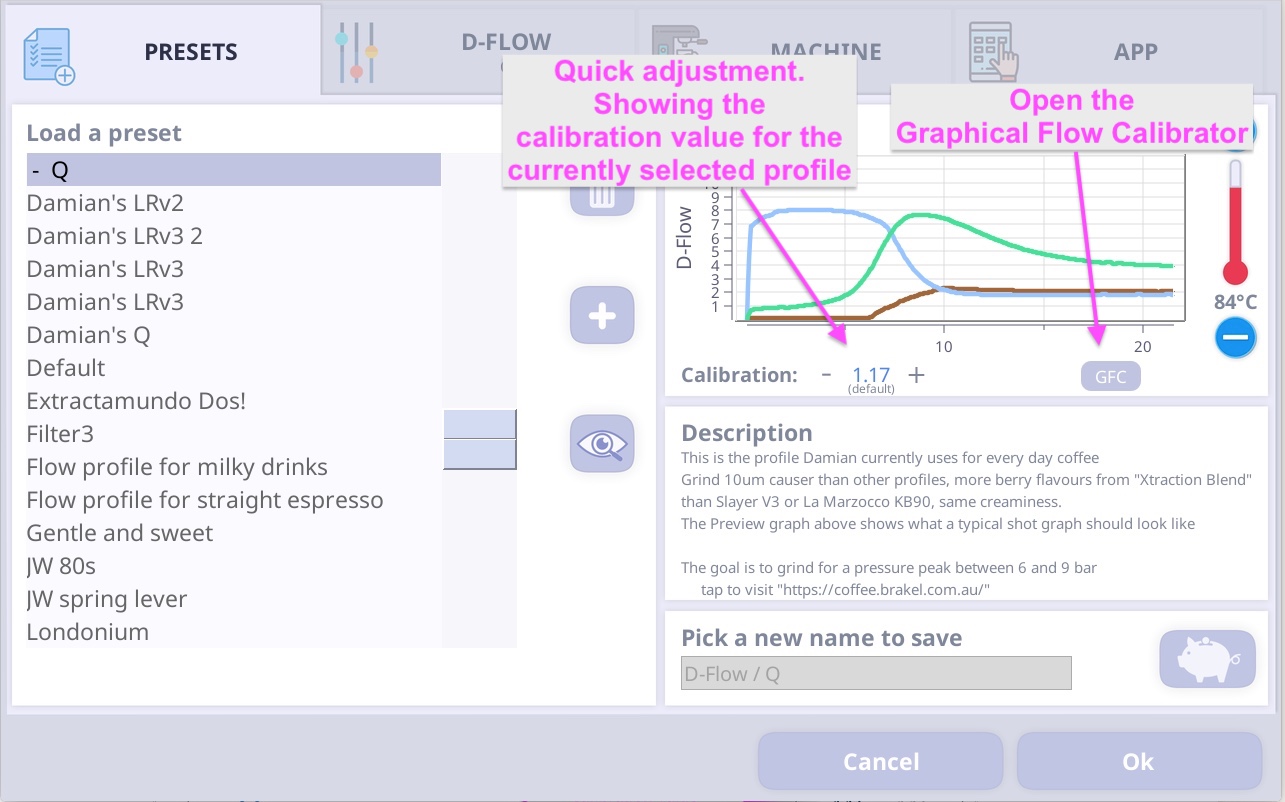
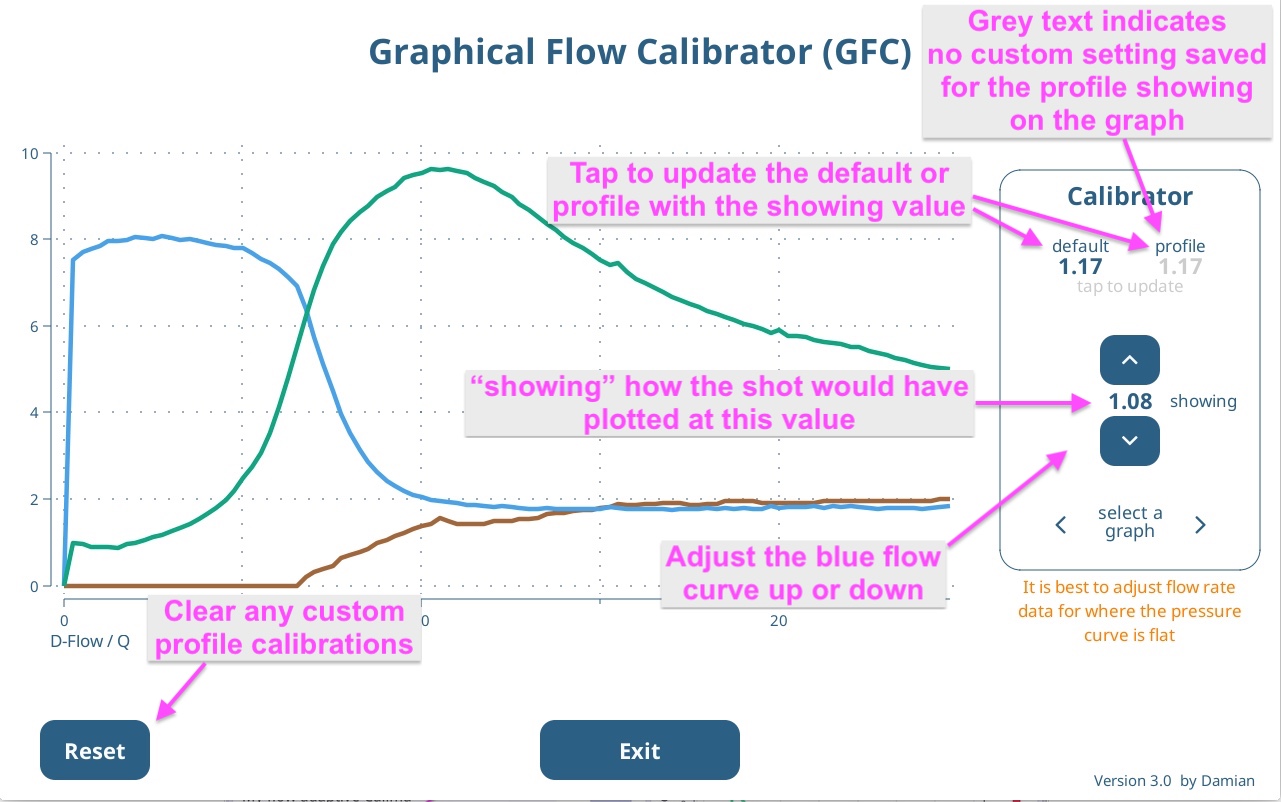
Graphical Flow Calibrator
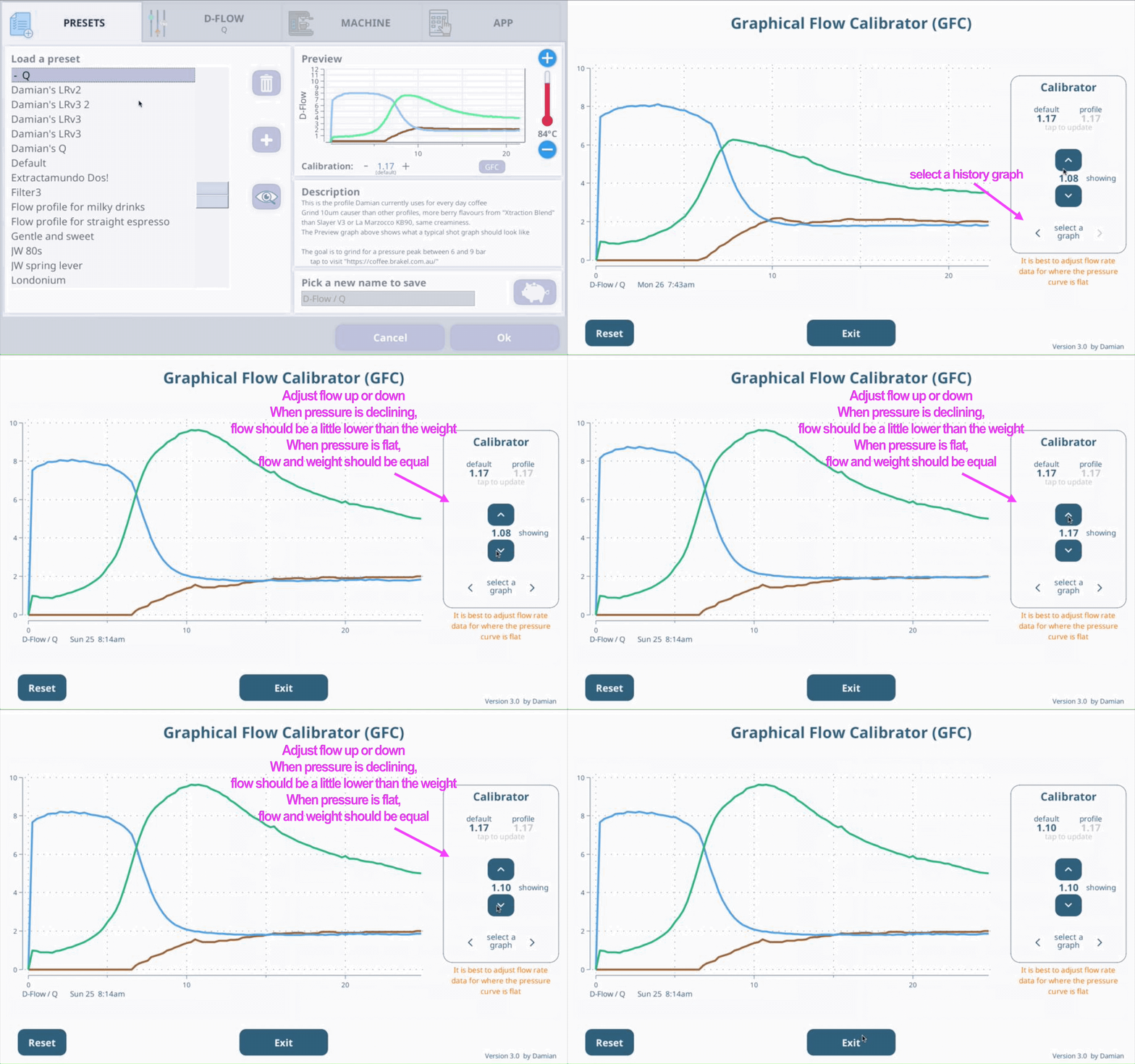
The number between the buttons indicates the calibration value the adjusted graph is representing. The goal is to adjust the flow curve up or down to more closely align with the weight curve.
You then have 3 options (buttons).
- Exit = will cancel and exit leaving settings unchanged.
- default = tapping the default button will save the value to the Apps Flow Calibration, the same “Flow” setting found on the Settings > Machine > Calibrate page.
- profile = tapping the profile button save the value and profile name of the profile showing on the graph to the settings file. Unless that value is = the default value, in which case it deletes any saved profile/value pair that may have been saved for that profile. You can save different profiles with unique values.
When you select a profile, the app will
check to see if you have a saved a value for the profile you’re
selecting. If you have, it sets the flow calibration to that value. If
there isn’t a value saved, the app loads the default flow calibration
value.
Note:
When a profile ends, the app takes a snap
shot of the graph data and all app and machine settings, and saves this
information to a “history” file.
We use data from history files for
the “Graphical Flow Calibrator” (GFC) graph. Whenever you open the GFC
page it will set the indicative value (between the arrows) to the value
saved in the history file. Similar, if you scroll to a different history
file using the “select a graph” arrow buttons, you would see the
indicative value change if the new loaded history file was saved with a
different calibration.